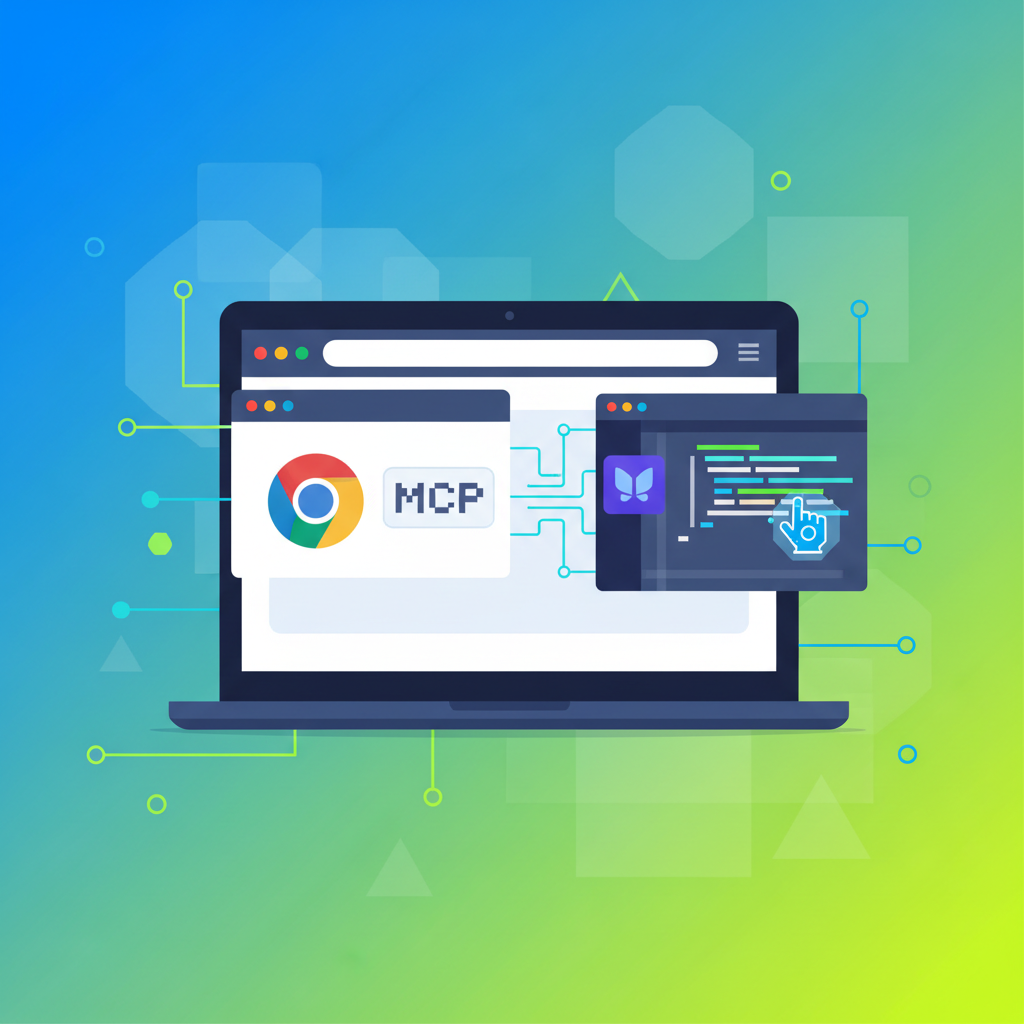
Chrome DevTools MCP (Model Context Protocol) bridges browser debugging and AI assistance by exposing runtime debugging context directly to AI tools like VS Code Copilot.[1] This integration transforms how developers debug and fix issues by enabling AI to reason over real browser runtime data instead of relying solely on static code analysis.
Understanding Chrome DevTools MCP
Chrome DevTools MCP exposes runtime debugging context directly to AI assistants.[1] This context includes console logs and warnings, network requests, performance traces, and DevTools state.[1] The fundamental advantage is that Copilot can analyze real browser behavior in real-time, making debugging faster and more accurate.
The architecture follows a simple mental model: Chrome DevTools → MCP Server → VS Code Copilot.[1] This connection allows your AI assistant to access live browser data and provide debugging assistance based on actual runtime conditions rather than guesswork.
Installation and Setup
System Requirements
To get started, you'll need:[2]
- VS Code
- GitHub Copilot
- Node.js
Installation Steps
The installation process is straightforward:[2]
- Open VS Code
- Press Ctrl+Shift+P (or Cmd+Shift+P on Mac)
- Type "MCP:" and select "Add Server" from the dropdown
- Select "Browse MCP Servers"
- Search for "Chrome" in the browser tab that opens
- Click "Install" on the Chrome DevTools MCP server
- Confirm the installation by selecting "Install in VS Code"
- Allow the browser permission popup to open VS Code
Alternatively, you can install via the command line:[6]
npm i chrome-devtools-mcp
Once installed, the MCP server will appear in your VS Code MCP list and you can start it to enable its functionality.[1]
Practical Use Cases
Console Analysis
One of the most effective applications is analyzing console errors and warnings.[1] To use this feature:
- Open your website in Chrome
- Open Chrome DevTools and navigate to the Console tab
- In VS Code Copilot Chat, ask Copilot to analyze the console output
Copilot can now read console output directly, explain warnings or errors, and suggest possible causes or improvements.[1]
Performance Analysis
Chrome DevTools MCP excels at performance debugging. For example, you can ask Copilot to check performance metrics like Largest Contentful Paint (LCP) scores for your website, and it will immediately access this data and provide analysis.[2]
UI Bug Fixing
Another powerful application is fixing visual bugs.[4] Instead of manually inspecting elements and trying code changes blindly, Copilot can use Chrome DevTools to visually inspect the live browser, identify the issue, and propose code fixes with full context.
Best Practices for Efficient Workflow
Leverage browser-based debugging contexts: Chrome DevTools MCP works best for browser-based debugging rather than backend issues.[1] Focus on using it for frontend problems, performance optimization, and console-based troubleshooting.
Understand its limitations: While Chrome DevTools MCP speeds up diagnosis significantly, it doesn't replace understanding fundamental concepts.[1] System design and architectural decisions still require human judgment. Additionally, React Native debugging does not fully map to Chrome DevTools yet.[1]
Combine with human expertise: Think of this as an acceleration tool rather than a replacement for debugging knowledge.[1] The AI provides the context and suggestions, but you apply critical thinking to validate solutions.
Request permissions strategically: When Copilot needs to take actions like screenshots or validations, it will request your permission before proceeding.[2] This ensures security and gives you control over what the AI can access.
The Future of Debugging
Debugging is evolving from searching to conversing.[1] Rather than manually scrolling through code and error logs, developers can now have AI assistants reason over real runtime data and provide solutions conversationally. Chrome DevTools MCP provides the context, while VS Code Copilot provides the solution—together making debugging and fixes faster and more intuitive.
The integration represents a shift in developer workflows where AI assists not by analyzing static code alone, but by understanding the actual runtime behavior of applications and providing informed, context-aware debugging assistance.

No comments:
Post a Comment